Why Doesn't Arabic Work in Photoshop?
Adobe Photoshop, Illustrator, InDesign, and After Effects are powerful graphic design tools, but they have a major problem with languages written from right to left (RTL) such as Arabic, Hebrew, Persian, and Urdu. When you paste Arabic text directly into Photoshop, you'll notice that:
- Letters appear in the wrong order (reversed)
- Letters are not connected to each other as they should be
- Text starts from left to right instead of right to left
- Diacritical marks (تشكيل) are incorrectly positioned
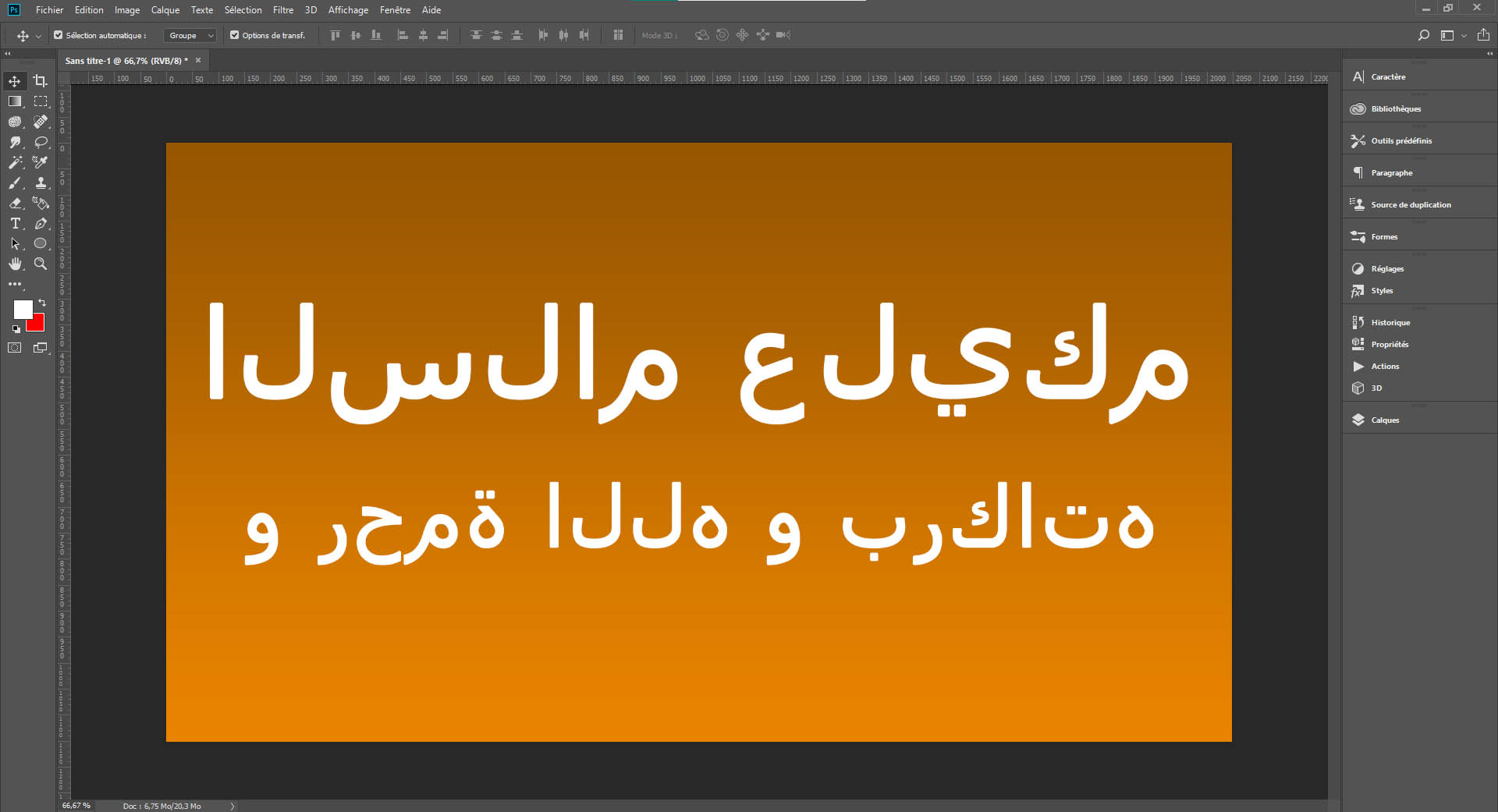
❌ Example of the problem: Arabic text displays incorrectly in Photoshop
The Technical Cause of the Problem
This problem exists because standard versions of Adobe Photoshop and Illustrator don't have a built-in RTL rendering engine. Unlike modern web browsers or word processors like Microsoft Word that automatically handle reading direction and Arabic letter connection, Photoshop simply treats each character individually without considering the complex rules of Arabic writing.
In Arabic, each letter can have up to 4 different forms depending on its position in the word (isolated, initial, medial, final). Additionally, text must be read from right to left. Photoshop doesn't apply these transformations automatically, resulting in incorrect display.
Solution 1: Text Reverser (Our Tool)
Our Arabic text reverser tool offers a simple and quick solution. By reversing the order of characters in your Arabic text before pasting it into Photoshop, you compensate for Photoshop's reversed reading problem. Here's why it works:
- Fast and free: No installation, no plugins, everything works in your browser
- Short and medium text: Ideal for logos, titles, quotes, posters
- Compatible with all Adobe software: Photoshop, Illustrator, After Effects, Premiere Pro
- Works offline: Once the page is loaded, you can use it without internet connection
However, this method has its limitations. It works well for short or medium texts, but for long multi-line paragraphs, reversal may not give a perfect result, as each line needs to be reversed separately.
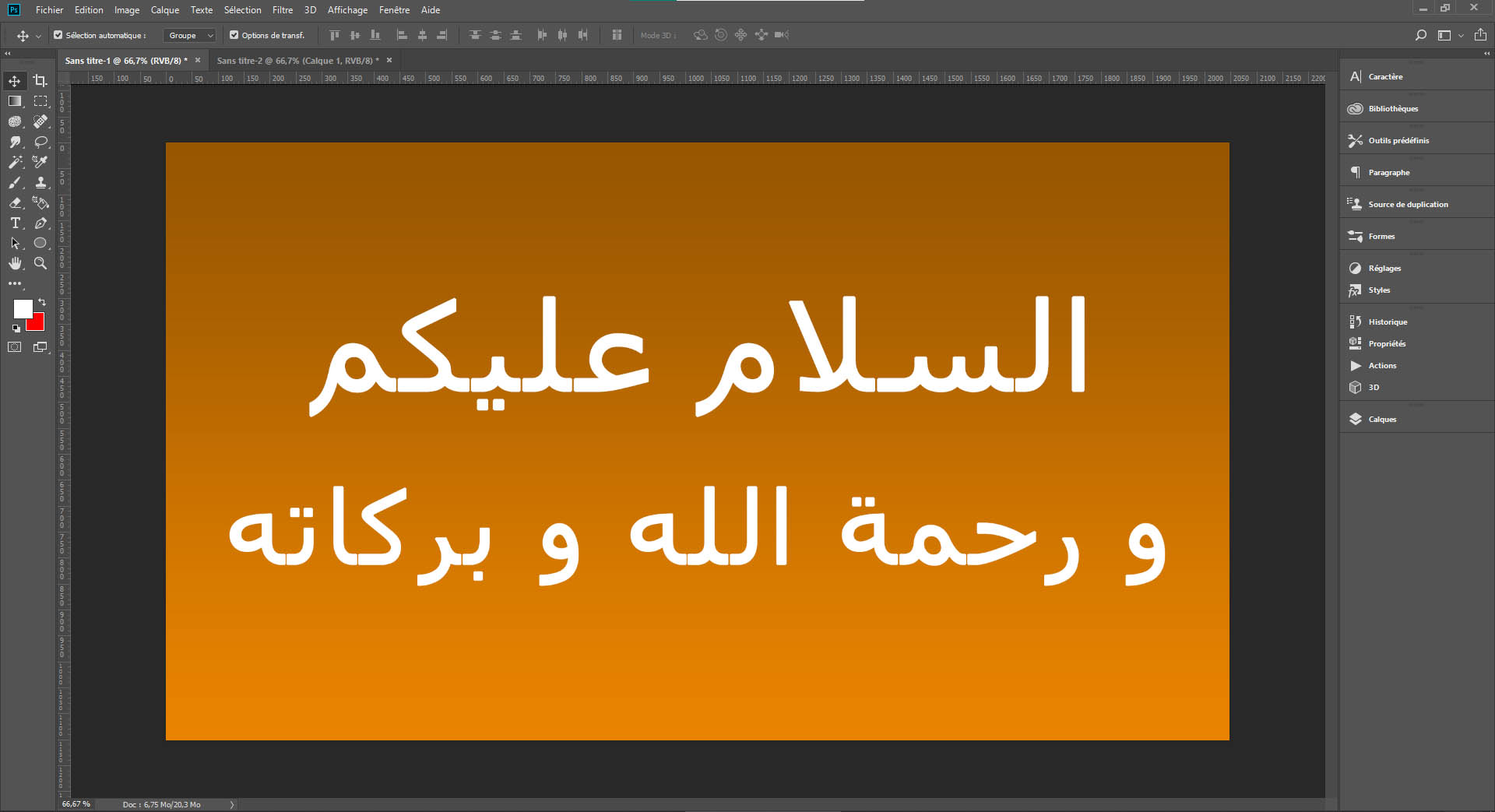
✅ With our tool: Arabic text displays perfectly after reversal
💡 Good to know: This tool doesn't only work with Photoshop! It's also perfect for video editing software (Camtasia, CapCut, Filmora), video games (Free Fire, PUBG, Valorant), and streaming tools (OBS Studio, Streamlabs). To see all use cases, check out our complete guide to the universal Arabic text reverser.
Solution 2: Adobe Photoshop ME (Middle East Edition)
Adobe offers a special version of Photoshop called Middle East Edition that includes native support for Arabic and Hebrew. This version features:
- Built-in RTL composition engine
- Automatic management of Arabic letter forms
- Full support for diacritical marks (kashida, tashkeel)
- Justification and spacing options adapted to Arabic
If you regularly work with long and complex Arabic text, investing in Photoshop ME can be an excellent solution. However, for occasional needs or short texts, our free reversal tool is more than sufficient.
Solution 3: Use InDesign for Long Texts
Adobe InDesign, the professional page layout software, has much better support for RTL languages than Photoshop. If your project involves a lot of Arabic text, consider using InDesign for text composition, then exporting to Photoshop if necessary.
Tips and Tricks for Arabic in Photoshop
Choosing the Right Font
After pasting your reversed text into Photoshop, you need to choose an Arabic font so the letters connect correctly. Here are some recommended Arabic fonts:
- Traditional Arabic: Classic elegant font, installed by default on Windows
- Arabic Typesetting: Excellent for long texts, good readability
- Noto Sans Arabic: Modern font from Google, free
- Droid Arabic Naskh: Modern sans-serif font
- Amiri: Classic style font inspired by Naskh style
- Cairo: Contemporary sans-serif font with multiple weights
Text Alignment
After pasting the reversed text, make sure to select right alignment in Photoshop so your text appears correctly aligned according to Arabic writing conventions.
Spacing and Kerning
You may need to manually adjust letter spacing (tracking) and kerning to achieve optimal rendering. Connected Arabic letters sometimes require fine adjustments for a professional result.
Advanced Photoshop Techniques for Arabic
Working with Layer Styles
When applying layer styles (drop shadows, strokes, bevels) to reversed Arabic text, be mindful that some effects may not look natural since the text is technically reversed. Test your effects carefully and adjust opacity and blending modes as needed.
Creating Arabic Logos
For logo design with Arabic text, use our reverser tool for the Arabic elements, then carefully adjust kerning and spacing for each letter pair. Consider creating custom letter combinations or ligatures for a unique brand identity.
Typography Best Practices
Arabic calligraphy has a rich tradition spanning centuries. When designing with Arabic text, research traditional calligraphy styles like Kufi, Naskh, Thuluth, and Diwani. Modern Arabic typography often blends these traditional forms with contemporary design principles for striking results.
Other Useful Tools
To complete your Arabic design workflow, discover our other free tools:
- Online Arabic Keyboard: Write in Arabic without a physical Arabic keyboard, perfect for creating your text before reversing it.
- BAC Average Calculator: Calculate your Moroccan Baccalaureate average.
- Precise Age Calculator: Calculate your exact age in years, months, and days.
Frequently Asked Questions (FAQ)
Conclusion
The problem of Arabic display in Adobe Photoshop is frustrating, but with our free text reversal tool, you can easily create professional Arabic designs. Whether you're designing logos, posters, social media posts, or any other graphic content, our tool saves you time and avoids technical complications.
For a complete workflow, start by typing your text with our online Arabic keyboard, reverse it with this tool, then paste it into Photoshop. Simple, fast, and free!